How to Create a WiFi QR Code Easily A Guide for Hotels, Restaurants, and Schools
In today's fast-paced digital world, offering fast and seamless internet access is no longer a luxury—it's an expectation. Whether you run a busy restaurant, a welcoming hotel, or a sprawling school campus, one of the most common questions your guests or students ask is: "What is the WiFi password?"
Repeating the password over and over or writing it on a tiny chalkboard is inefficient and prone to typos. Fortunately, there is a faster, more professional solution: a WiFi QR Code.
With ThaiQRCODE.com, you can create a high-quality, reliable WiFi QR Code in seconds. Here is how it works and why your business needs one.
Why Use a WiFi QR Code?
A WiFi QR Code allows smartphones to automatically connect to a wireless network simply by scanning the code with the default camera app. There is no need to manually type in a complicated password.
Here is why it’s perfect for your business:
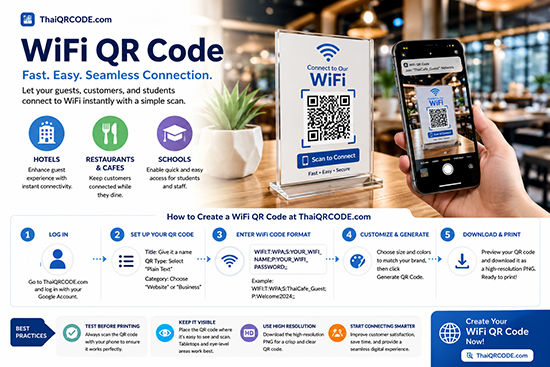
For Hotels: Place the QR code on the nightstand or the reception desk. Guests can scan it upon entering their room and connect instantly, enhancing their overall experience.
For Restaurants & Cafes: Stick the QR code on the tables or menus. Customers can connect to the internet while they wait, making their dining experience more enjoyable.
For Schools: Place QR codes in classrooms, libraries, or common areas. Students and staff can connect to the guest network quickly without interrupting class time.
How to Create a WiFi QR Code at ThaiQRCODE.com
Creating a WiFi QR Code with our platform is incredibly easy, fast, and completely free. Just follow these simple steps:
Step 1: Log In Go to ThaiQRCODE.com and log in using your Google Account. This allows you to save and manage your QR codes from your personal dashboard.
Step 2: Set Up Your QR Code
Title: Give your QR code a name (e.g., "Cafe Guest WiFi" or "Hotel Room 101").
QR Type: Select "Plain Text" from the dropdown menu.
Category: Choose "Website" or "Business" to keep your dashboard organized.
Step 3: Enter the WiFi Code Format In the Content box, you need to enter your WiFi details using the standard WiFi network string format. Use the following template:
WIFI:T:WPA;S:YOUR_WIFI_NAME;P:YOUR_WIFI_PASSWORD;;
Here is how to fill it in:
T:WPA (This is the security type. Use WPA for most modern routers. If your network has no password, leave it blank. For older WEP networks, use WEP).
S:YOUR_WIFI_NAME (Replace this with your actual WiFi network name/SSID).
P:YOUR_WIFI_PASSWORD (Replace this with your exact WiFi password).
Example: If your WiFi name is "ThaiCafe_Guest" and the password is "Welcome2024", you would type: WIFI:T:WPA;S:ThaiCafe_Guest;P:Welcome2024;;
(Note: Make sure to include the two semicolons ;; at the very end).
Step 4: Customize and Generate Choose your preferred size and colors to match your brand. (Pro tip: Keep the QR code dark on a light background for the best scanning results). Then, click the Generate QR Code button.
Step 5: Download and Print Preview your QR code, and once you are happy with it, click Download PNG. You can now print this image on table tents, keycard folders, or wall posters.
Best Practices for WiFi QR Codes
Test Before Printing: Always scan the QR code with your own phone before mass-printing it to ensure the network name and password are correct.
Keep It Visible: Place the QR code where customers can easily point their phones. Eye-level or tabletop placements work best.
Use High Resolution: Download the high-resolution PNG to ensure the code is crisp and easy to scan, even from a distance.
Start Connecting Smarter
Providing internet access doesn't have to be a hassle. By using ThaiQRCODE.com, you can elevate your customer service, save time for your staff, and give your guests a seamless digital experience.
Ready to make your own? Click here to create your WiFi QR Code now!